| NoClone - Similar Images Finder: Find and remove similar images |
|
 |
| File Size: |
6.29 MB ( It will take about 5 seconds to download.
) |
|
| Requirements: | Windows XP/Vista/7/8 (32/64 bit) (all ed.)
Server 2003/2008/2012 (enterprise ed.) |
|
| Downloads: |
2,000,000+ |
|
|
|
 Fully
compatible with Windows XP, Vista, 7, 8 Fully
compatible with Windows XP, Vista, 7, 8 |
|
| You may find that there are many duplicate pictures, especially, similar images
take up a lot of disk space.Now, NoClone 2013 can not only find duplicate images but also can find out the similar images in a folder and in different folders, which can help you free up your disk space to store more precious photos. |
|
| NoClone 2013 uses advanced algorithms to find duplicate images so that it can quickly find all similar images which have been resized, clipped, rotated, slightly modified or saved in a different format. You can control how exact and loose you want the comparison to be by defining a percent of image similarity that will be used during the scan. NoClone most popular image formats (e.g. JPG, GIF, BMP and PNG). After finish the scan process, NoClone shows you all the duplicate and similar images in groups and you can review all similar images in visual preview panel by one click. |
|
| Mark similar images |
|
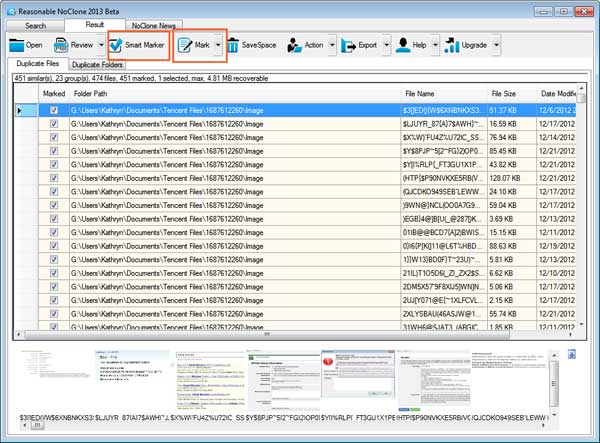
| Mark the similar by checking “Smart Marker”,"Mark" or by manually after reviewing the search results; |
|
 |
|
| Manage similar images |
|
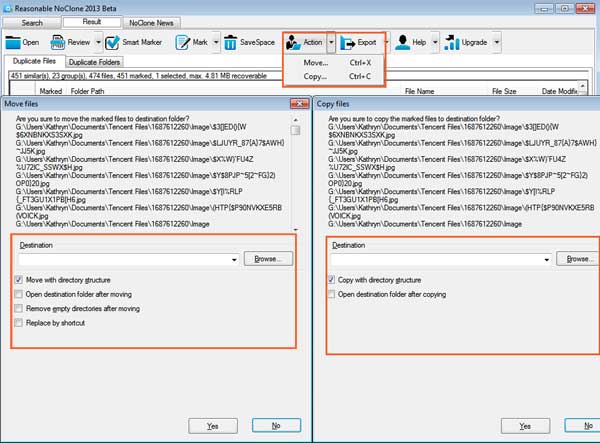
| Click “SaveSpace”"Action" to delete, move or copy the selected similar images |
|
 |
|
| NoClone Duplicate File Finder is a Five Star Rated Download with over
Two Million users worldwide. The benefits include: |
|
 |
Clean and tidy PC |
|
Faster computer performance |
|
|
Manage files more efficiently |
|
Recover wasted disk space |
|

“winner of over 100 5-star awards”
|
|
|
|
|
|
| Step Two |
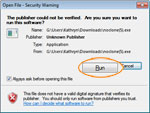
| Click "Run" button |
| when it appears |
 |
|
|
| Step Three |
|
Find duplicate files that |
| clutter
up computer! |
 |
|
|
| Step
Four |
|
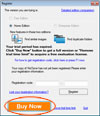
Click "Buy Now" to |
| get full
version! |
 |
|
|
|
|
|
|
| Increase free space by up to 50% with NoClone 2013 |
 |
True binary comparison, 100% accurate. |
|
| Find duplicate files, folders, emails & similar images. |
|
| Support any file types like jpg, gif, avi, mp3, xls, doc, pdf. |
|
|
Filter duplicates by date, name, size, name length
of file. |
|
| Work
with removable media devices like Floppy, USB, etc. |
|
|
|
Unique features for
Home and Enterprise Ed.: |
|
|
 |
|
| Find and remove duplicate folders |
It takes less than 20 minutes to find out duplicate folders from
a 25GB data folder. |
|
|
 |
|
| Find and remove similar image |
Uncover
duplicate images regardless of size, cropped,modified.
Easy to find and manage the similar images. |
|
|
|
|
|
|
|
|
|
|
|
|
|
| File Size: | 6.29 MB
(It will take about 5 seconds to download.) |
|
| Requirements: |
Windows
XP/Vista/7/8 (32/64 bit) (all ed.)
Server 2003/2008/2012 (enterprise ed.)
|
| 
25% off coupon code: ADWS13 |
|
|
|
|
|
| “winner of over 100 5-star awards” |
|
Customer reference |
|
|
|
|
|
|
|
|
|
|
|
|